


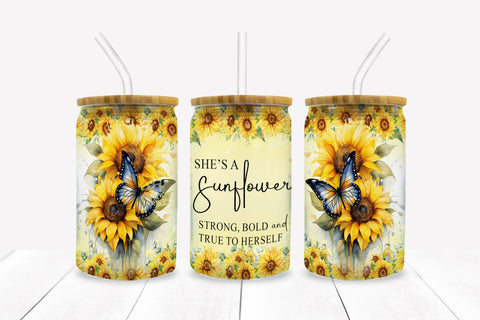
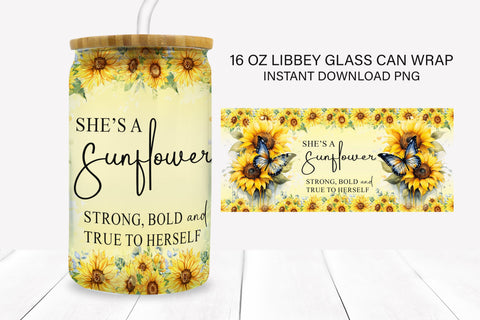
She's A Sunflower 16 oz Glass Can Sublimation Wrap
Purchase includes:
- Zip file containing: PNG, EPS file types
- color design only, no black and white
- Compatible with Silhouette Studio, Cricut Design Space, Scan N Cut, Adobe Illustrator and other cutting and design programs
- So Fontsy Standard Commercial Use License
Product Description
Unleash empowerment with our "She's A Sunflower" 16oz Libbey Glass Can Sublimation Design! Celebrate strength and authenticity with the bold message, "She is a sunflower – strong, bold, and true to herself." Let our Bold And Strong PNG design inspire your every sip. A radiant sunflower accompanied by a graceful butterfly embodies resilience and individuality. Crafted for those who embrace their uniqueness, this design fuels confidence and positive vibes. Elevate your 16oz glass can with this digital masterpiece that speaks volumes. Purchase now and sip in the essence of being fearless, strong, and beautifully authentic every day.
YOU WILL RECEIVE:
✦ 1 PNG image
✦ Each image is 9.6 inches x 4.2 inches
✦ 300 DPI
PLEASE NOTE:
✦ This product is a digital download only, no physical items will be sent to you.
✦ Colors may slightly vary due to your monitor’s settings.
- All Digital Product SKUs (w/o Bundles, GC, Software, Transfers) ,
- All Products $2-3 ,
- All SKUs ,
- All SKUS without Software, Physical & Gift Cards ,
- BijouBay ,
- Flowers SVG Designs ,
- Glass Can Wrap Designs ,
- Glass Can Wraps and Templates ,
- Metafield Flow Completed ,
- products 2.97-3 ,
- Products with Digital Product Type Metafield set ,
- Sublimation Designs ,
- Sunflower SVG Designs ,
- Tagged with Metafield Flow

Commercial Use

Cut-Friendly

Lifetime Download
- All Digital Product SKUs (w/o Bundles, GC, Software, Transfers),
- All Products $2-3,
- All SKUs,
- All SKUS without Software, Physical & Gift Cards,
- BijouBay,
- Flowers SVG Designs,
- Glass Can Wrap Designs,
- Glass Can Wraps and Templates,
- Metafield Flow Completed,
- products 2.97-3,
- Products with Digital Product Type Metafield set,
- Sublimation Designs,
- Sunflower SVG Designs,
- Tagged with Metafield Flow


