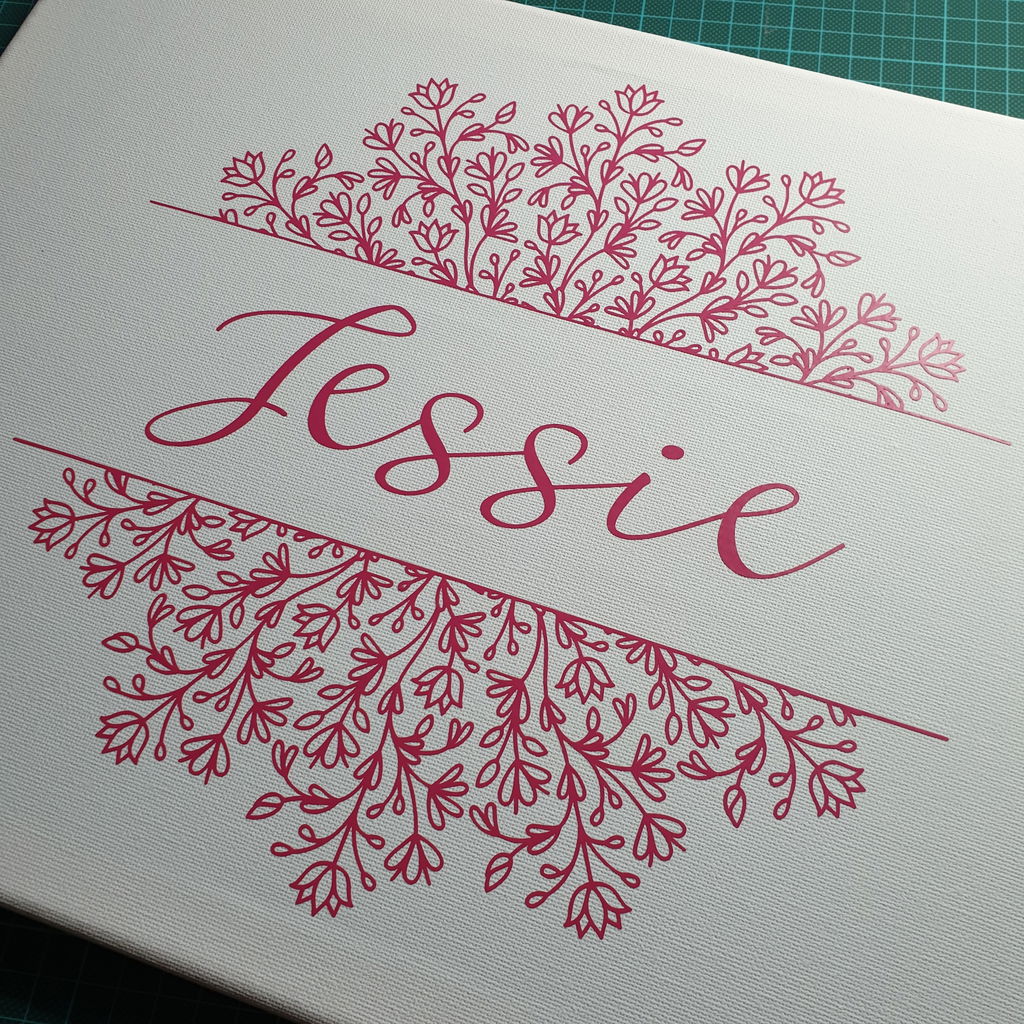
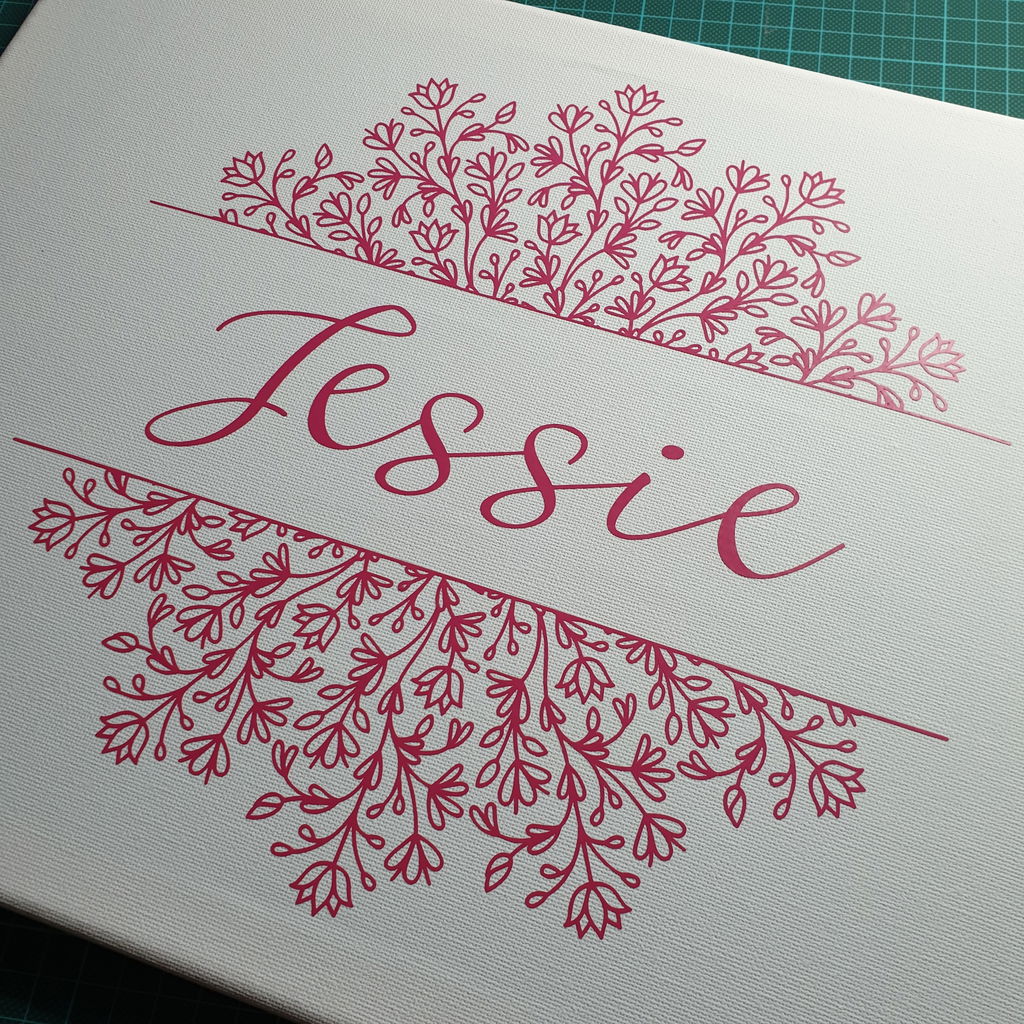
Intricate Mandala Monogram Alphabet SVG cutfile for weeding pros :)
Purchase includes:
- Zip file containing: SVG, PNG, DXF and EPS file types
- Compatible with Silhouette Studio, Cricut Design Space, Scan N Cut, Adobe Illustrator and other cutting and design programs
- So Fontsy Standard Commercial Use License
Also Available for this Product
Product Description
MANDALA MONOGRAM ALPHABET • cuttable version • make beautiful monogrammed projects and gifts or add a name or nice quote to the split mandala!
This Mandala Alphabet cutfile is ultra intricate so not suitable for cutting at small sizes. It’s tested to work on 10 x 10 inches and up. Weeding pros will enjoy creating projects with these designs! Others please note that weeding elves are not included! :)
There are 29 designs in this bundle: 26 letters of the alphabet, ampersand (&), blank mandala and split mandala.
Also very suitable for sublimation and laser cutting or Glowforge!
::
These files are designed to use in Silhouette Studio, Cricut Design Space, Scan 'n' Cut Canvas, Sure Cuts a Lot (SCAL) and other popular cutting software that accept these files. Before purchasing please make sure your cutting machine is compatible with any of the file formats provided.
::
This listing contains the following INSTANT DOWNLOAD neatly divided into sub-folders grouped by file-type (in one .zip):
- 29 SVG, 29 DXF, 29 FCM and 29 EPS files, these are vector-formats.
- 29 PNG image files in high resolution 300 dpi at 10 inch wide - for use as clipart/print and cut (pixel) image.
You need to unzip/extract the received folder to enable the use of the separate files: go into the main folder and drag the files you need to your desktop, this will automatically extract them.
::
All listings are DIGITAL files, no physical items will be sent to you. Any product pictures are for presentation purposes only.
The ACTUAL FILES may NOT be shared or resold in any form.
Like my style? Follow me on Facebook or Pinterest :)
© 2020 CLEANCUTCREATIVE ALL RIGHTS RESERVED
- $4-5 Products ,
- All Digital Product SKUs (w/o Bundles, GC, Software, Transfers) ,
- All SKUs ,
- All SKUS without Software, Physical & Gift Cards ,
- All SVG Collection ,
- Auto Published to GMC ,
- Cat Test ,
- CleanCutCreative ,
- Currently on GMC - Tagged ,
- Mandalas & Zentangles ,
- Metafield Flow Completed ,
- Monogram Frames ,
- Monograms ,
- Products with Digital Product Type Metafield set ,
- SVG Cutting Files ,
- SVG Files ,
- Tagged with Metafield Flow

Commercial Use

Cut-Friendly

Lifetime Download
- $4-5 Products,
- All Digital Product SKUs (w/o Bundles, GC, Software, Transfers),
- All SKUs,
- All SKUS without Software, Physical & Gift Cards,
- All SVG Collection,
- Auto Published to GMC,
- Cat Test,
- CleanCutCreative,
- Currently on GMC - Tagged,
- Mandalas & Zentangles,
- Metafield Flow Completed,
- Monogram Frames,
- Monograms,
- Products with Digital Product Type Metafield set,
- SVG Cutting Files,
- SVG Files,
- Tagged with Metafield Flow
Customer Reviews
Loved this design and decided that I was up for the challenge of weeding it despite it being my first vinyl project on my Cameo 4. I used the split mandala and added a name in the middle. The cut was brilliant, I thoroughly enjoyed the weeding and am now on the search for more intricate designs!